


Search
Link to Specific Areas of a Google Doc with Bookmarks
Dec 9, 2025
1 min read
We like to use the 'Bookmark' tool in Google Docs to link to specific areas or sections of our document. This is especially useful in longer documents.
Step 1 - Getting started is simple. Navigate to the area in the document you would like the bookmark to go, and therefore link to.
From the 'Insert' menu, select the 'Bookmark' option.
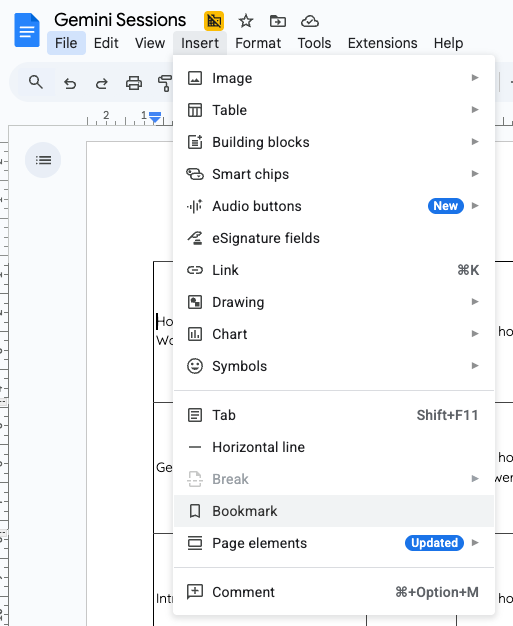
Step 2 - The bookmark icon will then appear in your desired area.

Step 3 - To insert the link to the bookmarked area, from the 'Insert' menu select 'Link', or right click and select 'Link'.

Step 4 - A window will open, and you can select the bookmark from the list of possible links.

The link will be inserted.
To learn more about Google Docs, we can help you with:


