


How to Use Live Pointers in Google Slides
The best thing about Google Workspace is the collaboration. Long gone are the days when you have to ask colleagues to leave a doc so you can edit it.
In our training roles, Lauren and I can be constantly editing Google Slides decks together, and to make that collaboration easier, we use the Live Pointers feature.
Below, I have the same Google presentation open twice; when I move my pointer on the right your can see my pointer on the left in green with my name. This makes it much easier to point out specific diagrams or tables, etc.

How to Turn On Live Pointers
Step 1 - Open Google Slides
Step 2 - Select the 'View' menu
Step 3 - Hover over 'Live pointers'
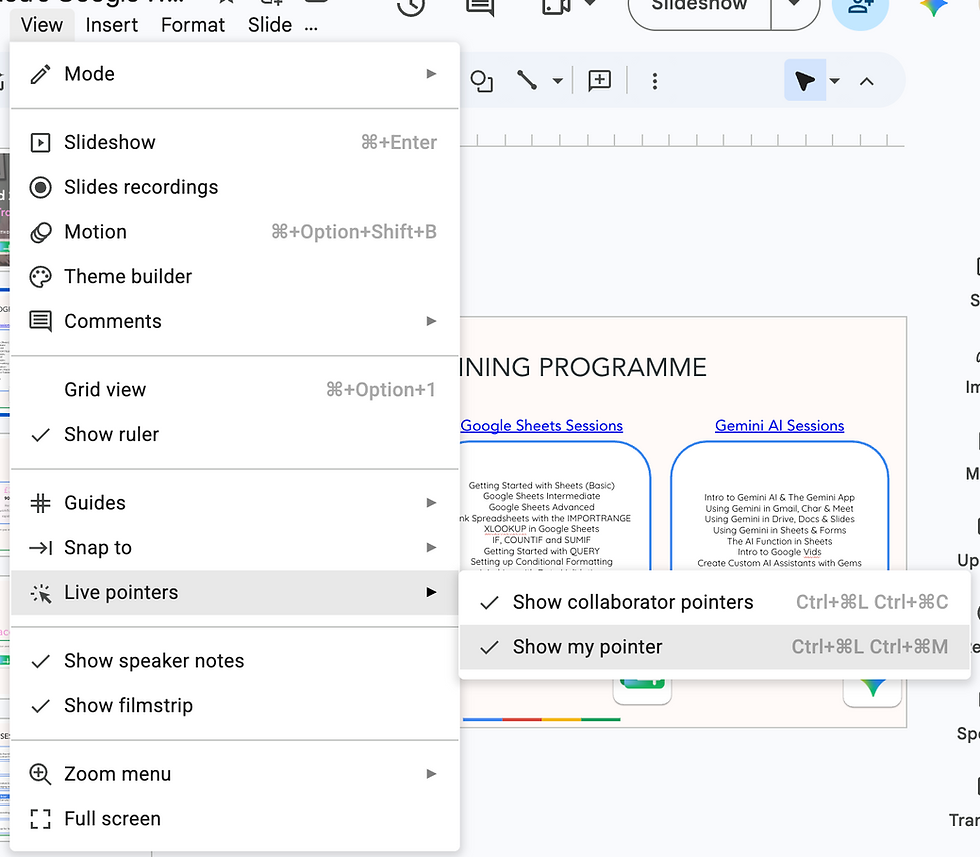
Step 4 - Select 'Show my pointer' to allow others to see it. You must have edit access to show your pointer.
Try enabling Live Pointers on your next shared slide deck and see if it improves your collaborative experience.
Top Tip: Keyboard shortcut Ctrl + Alt + L (On Windows) or Cmd + Option + L (On Mac).


