


Why Your Google Sheets Formulas Are Breaking
This is one for the formula writers, as this can be a formula killer. We are talking about whitespace, invisible spaces ruining your formula, sometimes before or after the text. This can happen a lot if data has been imported from somewhere else, and can lead to you having no idea why your formula isn't working.
They are easy to miss at a glance (or even the tenth stare), and here is how to quickly fix it.
Step 1 - Highlight the data (the entire column or range) that you want to clean up.
Step 2 - On the top menu bar, click on the Data menu.
Step 3 - Hover your mouse and click Data cleanup.
Step 4 - Select Trim whitespace.

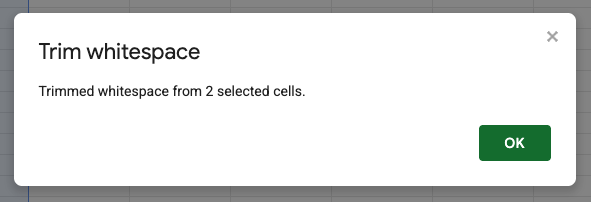
A pop-up will appear and tell you how many cells had whitespace trimmed! It would be good to do this as part of your process when importing data, to remove the impact on your VLOOKUPs.
This should fix any Google Sheets formulas impacted by rogue whitespace.
To learn more about Google Sheets book, CloudShed's live and interactive Google Sheets training sessions.
Or purchase our On-Demand Google Sheets courses.


