


How to Enable Your Daily Agenda Email in Google Calendar
Google Calendar can send you an agenda list straight to your mailbox every morning. If you use multiple calendars (like one for work and one for family), you can enable this for each one to get an overview of your whole day. This is a great hidden Google Calendar feature to add to your daily routine.
Step 1 - Open your Google Calendar
Step 2 - In the top right corner, click the Settings menu (the wheel/gear icon) and select 'Settings'.

Step 3 - On the left-hand sidebar, look for the 'Settings for my calendars' section.
Step 4 - Click on the name of the calendar you want the agenda to come from (usually your primary email address).
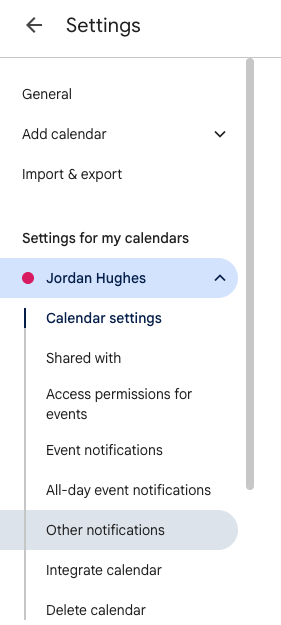
Step 5 - Scroll down to the 'Other notifications' section.
Step 6 - Find the 'Daily agenda' option and change the dropdown menu from 'None' to 'Email'.
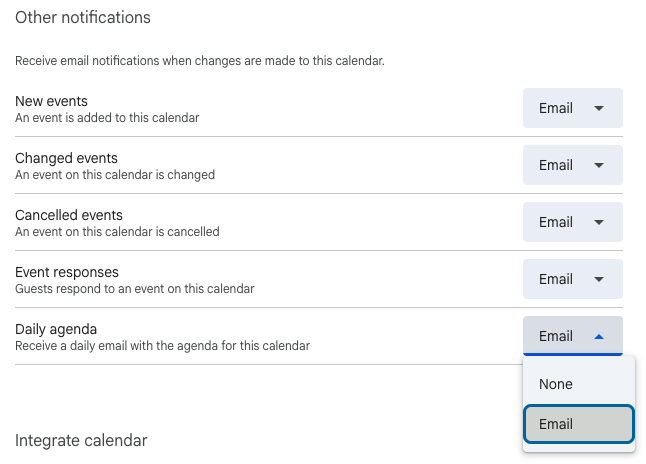
It's as simple as that, starting tomorrow morning, a summary of your day will be waiting for you in your inbox.
To learn more about Google Calendar, book a live training session with Cloudshed.
Our Increase Productivity in Calendar training session runs for 90 mins and covers productivity tips in Google Calendar, useful settings, scheduling tips and appointment booking.
You can contact us at contact@cloudshedtraining.co.uk


